
Last updated 8 Oct 2026
Your store's logo, colours, header, homepage and footer are all edited in one place, with a live preview beside you. Nothing changes for your customers until you publish.
1. Open the customiser
In the sidebar, open More, then go to Storefront → Design. The theme marked Active is the one your store uses. Hover over it and click Customize.
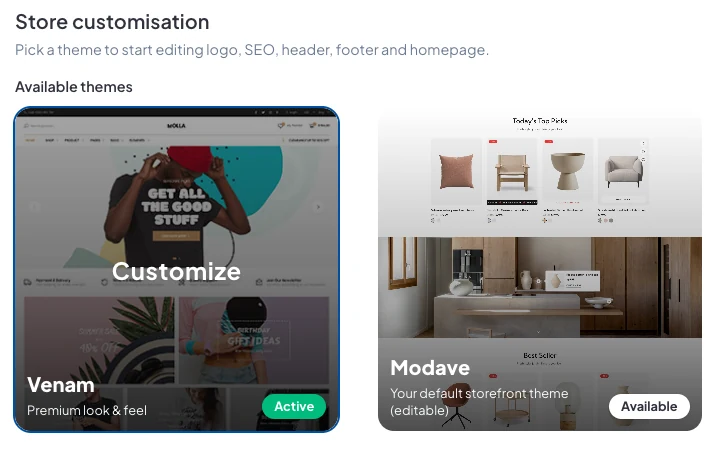
Clicking a different theme switches you to it, so stay on the Active one unless you want a new look.
2. Choose what to edit
The list on the left holds everything you can change:
- Appearance: your logo, brand colour, corners and fonts.
- Header: the top bar, menu and icons.
- Homepage: the big banner at the top, and its slides.
- Home sections: the blocks under the banner, and their order.
- Product page: the gallery, description and related products.
- Footer: links, newsletter, payment icons and WhatsApp.
- SEO: your site title and how links look when shared.
- About and Contact: the sections on those pages.
Your changes show in the preview on the right as you make them. Use the icons at the top to see your store at desktop, tablet and phone sizes.
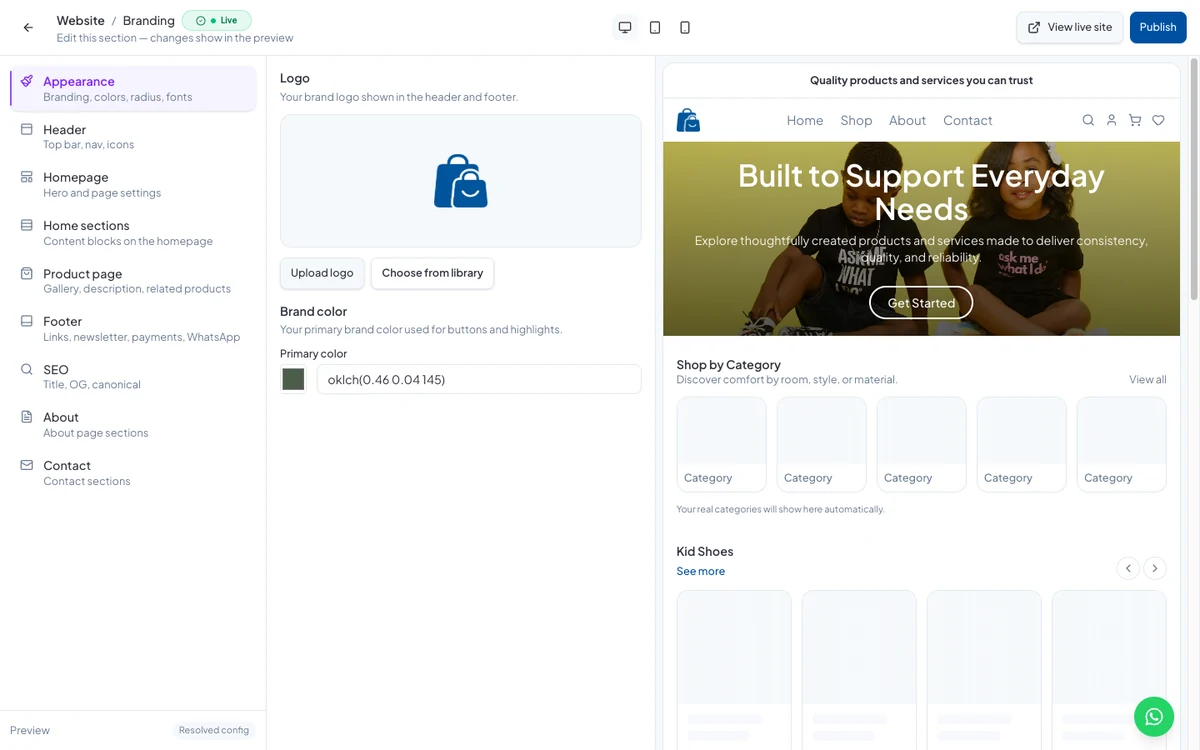
3. Arrange your homepage
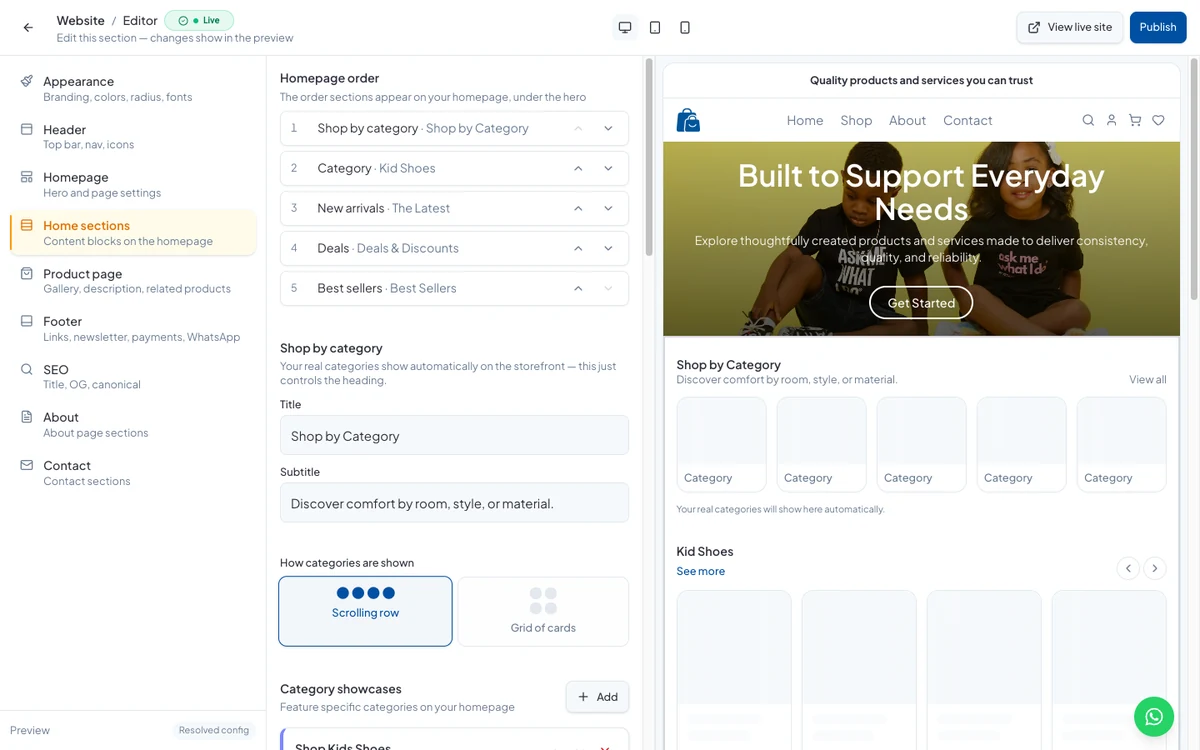
In Home sections, the Homepage order list shows the sections under your banner. Use the arrows to move a section up or down, then edit its title and subtitle and choose how it's laid out.
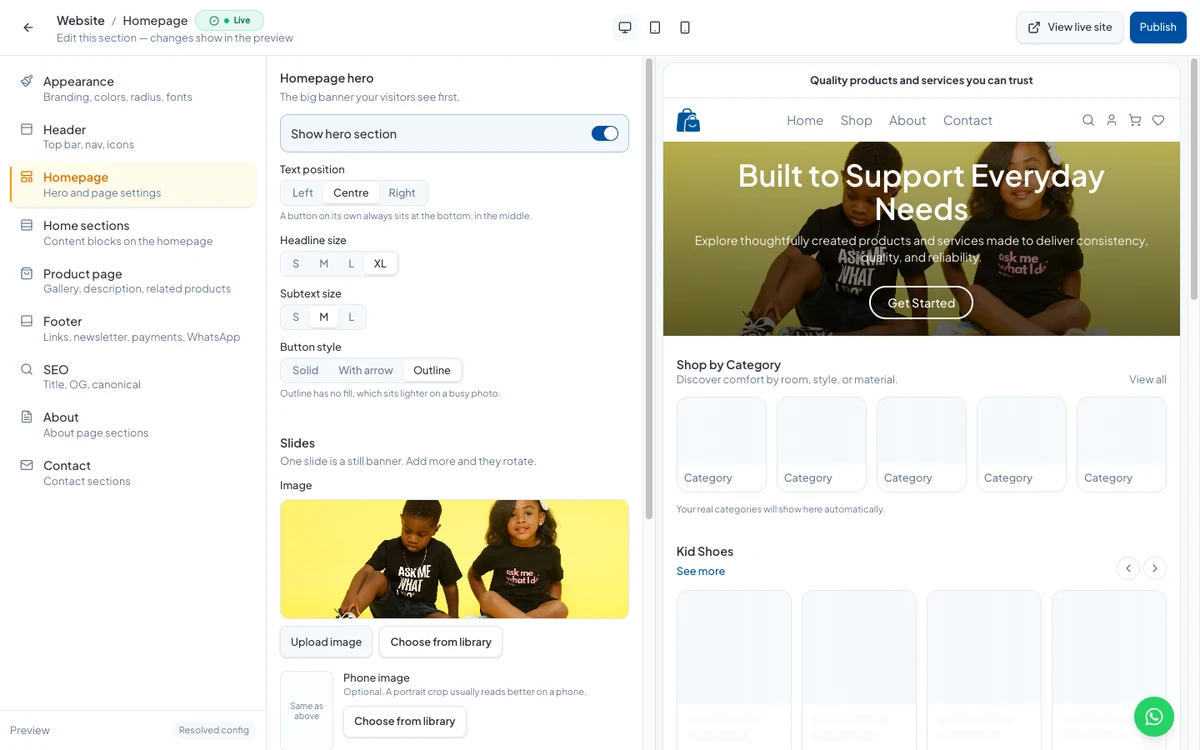
In Homepage, turn the banner on or off, choose where its text sits and how big it is, pick a button style, and add slides. Each slide has its own image, and you can add a separate image for phones.
4. Publish
Your edits are saved as a draft while you work. When you're happy, click Publish at the top right and confirm. Click View live site to see your store the way customers do.
Good to know
- Until you publish, customers keep seeing the last version you published.
- Your store's web address and domain are under Storefront → Domains.
- On your phone, More → Edit Website in the SalesCenta app changes the announcement bar, homepage banner, section order, brand colour, footer text and SEO, then you publish.
Did this answer your question? Contact support if you need more help.