
Last updated 8 Oct 2026
When your shelf and SalesCenta don't agree (after a stock take, a damaged item, or stock that arrived without an order), correct the count with an adjustment. Every adjustment is recorded, so you can always see what changed and why.
1. Find the product in Inventory
Go to Inventory → Overview. Choose the location along the top (your warehouse or one of your stores), then click a product to show its variants. You can also search by product name or SKU.
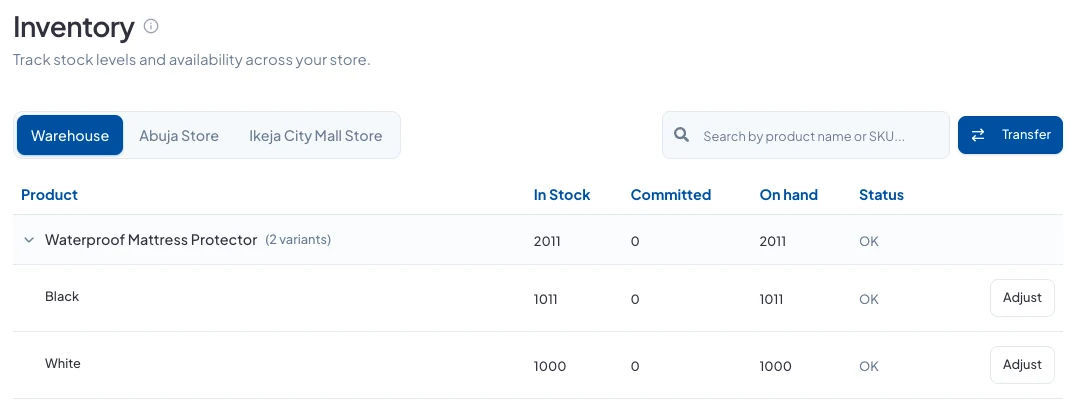
The columns show In Stock (free to sell), Committed (held for orders you haven't fulfilled yet) and On hand (everything that's physically there).
2. Adjust the count
Click Adjust next to the variant. In Delta, enter how much to add or take away: a positive number adds stock and a negative number removes it. Add a note saying why, then click Apply.
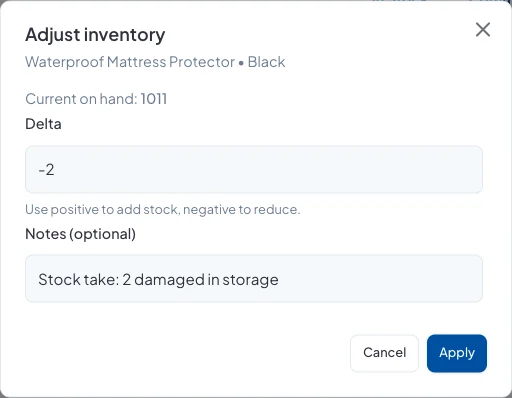
Enter the change, not the new total. If SalesCenta says 1,011 and you count 1,009, enter -2.
3. Check the history
Every adjustment is listed in Inventory → Stock Movements. Choose Adjustments to see only those, with the time, location, variant, amount and your note.
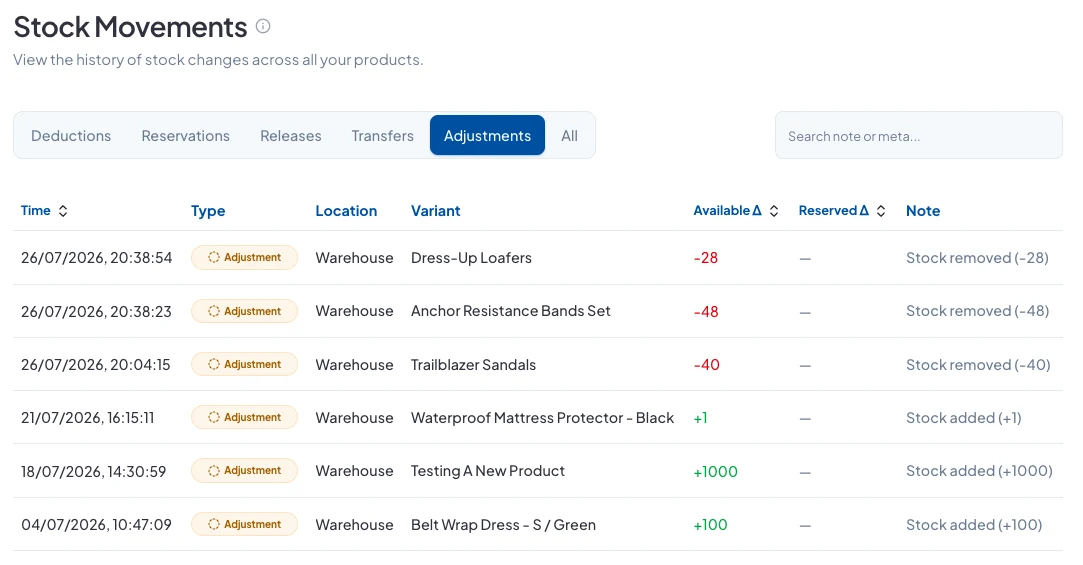
Stock Movements is a record only. To change stock, go back to Inventory → Overview.
Good to know
- Adjust the location where the stock really is. To move stock from your warehouse to a store, use Transfer on the Inventory page instead, so both counts stay right.
- Sales and transfers update stock on their own, and so do returns you put back in stock. You only need an adjustment for changes SalesCenta can't see.
- On your phone, go to More → Overview (under Inventory) in the SalesCenta app, find the variant and tap Adjust.
Did this answer your question? Contact support if you need more help.