
Last updated 9 Oct 2026
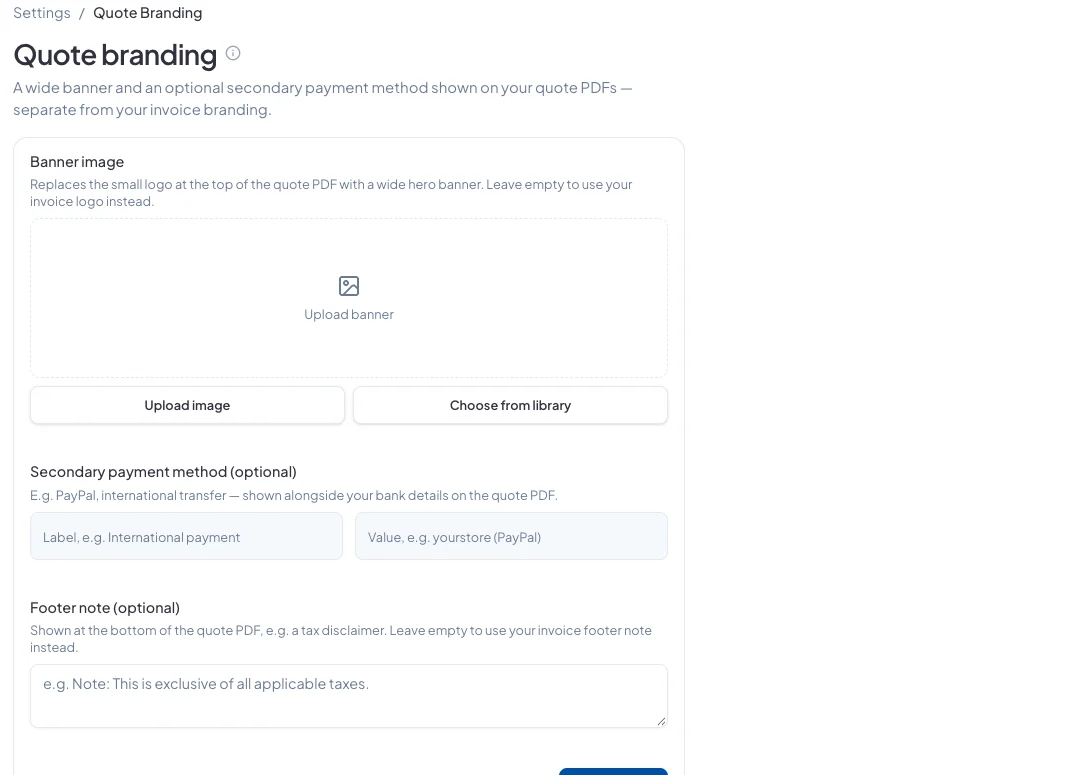
Quotes have their own branding, separate from your invoices. You can put a wide banner at the top, show a second way to pay, and add your own footer note.
Change your quote branding
Click the gear icon at the top right to open Settings, then choose Quote Branding under Documents.
- Banner image: replaces the small logo at the top of the quote PDF with a wide banner. Leave it empty to use your invoice logo.
- Secondary payment method: shown next to your bank details on the quote, for example International payment and your PayPal address.
- Footer note: shown at the bottom of the quote, such as a note that prices exclude tax. Leave it empty to use your invoice footer note.
Click Save changes.
Good to know
Your business name, address and contact details on quotes come from your invoice branding. See How do I change how my invoices look?
Did this answer your question? Contact support if you need more help.