
Last updated 9 Oct 2026
Every member of your team signs in with their own account, and their role decides what they can see and do.
The roles
Go to Team in the sidebar (under More) and open the Roles tab.
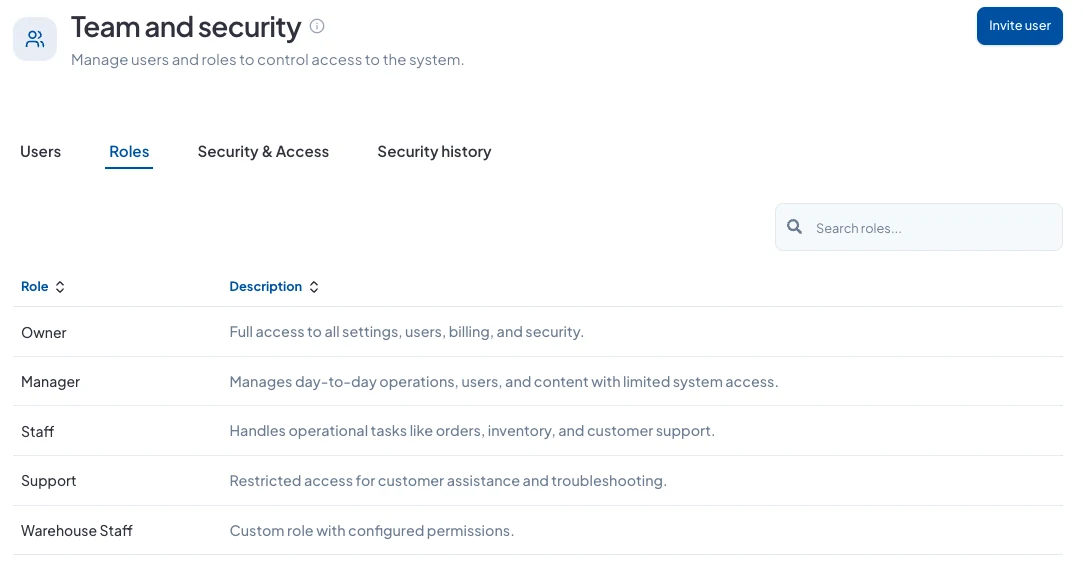
- Owner: full access to all settings, users, billing and security.
- Manager: runs day-to-day operations, users and content, with limited system access.
- Staff: orders, inventory and customer support.
- Support: restricted access for helping customers and fixing problems.
- Marketing: promotions, discounts, storefront content and campaigns.
- Accountant: billing, invoices, taxes and financial reports.
Start with the smallest role that lets someone do their job. It's easy to give more access later.
Make your own role
When you invite someone, turn on Create new role and give it a name. Then, for each area of SalesCenta (products, orders, customers, billing and so on), choose whether the role can View, Manage or have Admin access. Your custom roles appear in the Roles list alongside the built-in ones.
Choose which stores they can use
If you run more than one store, tick the stores someone can access under Store Access when you invite them. To change it later, click Edit next to their name on the Users tab.
Good to know
- To invite someone, click Invite user on the Team page.
- When someone leaves, click Remove next to their name the same day. Their access ends straight away.
Did this answer your question? Contact support if you need more help.