
Last updated 9 Oct 2026
Customers book from your store, but you can also add appointments yourself, for walk-ins or bookings made over the phone or WhatsApp.
Bookings is switched on for businesses that take appointments: you choose this when you sign up. If you don't see Bookings in your sidebar, contact us and we'll turn it on for you.
1. Add an appointment
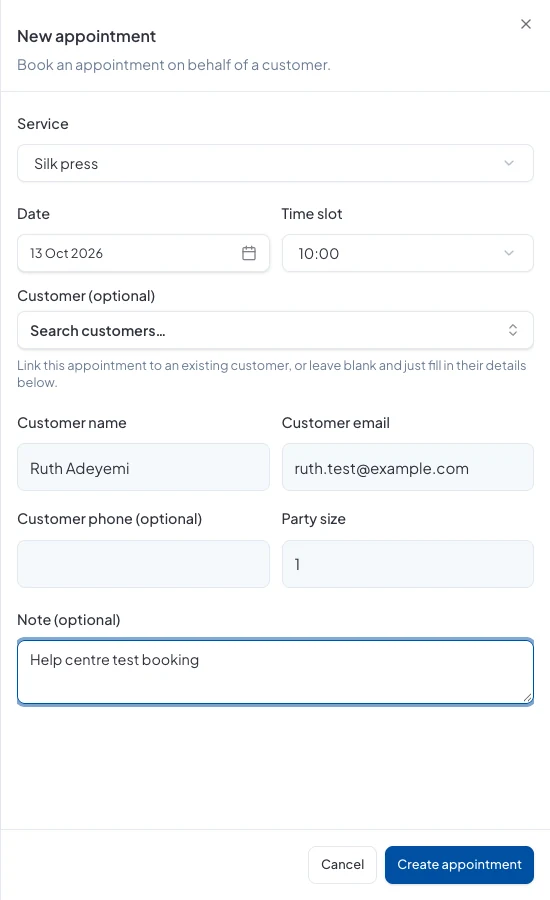
Go to Bookings → Schedule and click New booking. Choose the Service and the Date, then pick a Time slot. Only free times are shown, allowing for the service's length and buffers.
Search for an existing Customer, or just type their name and email. Add a phone number, the party size and a note if you need to, then click Create appointment.
2. Find it in your schedule
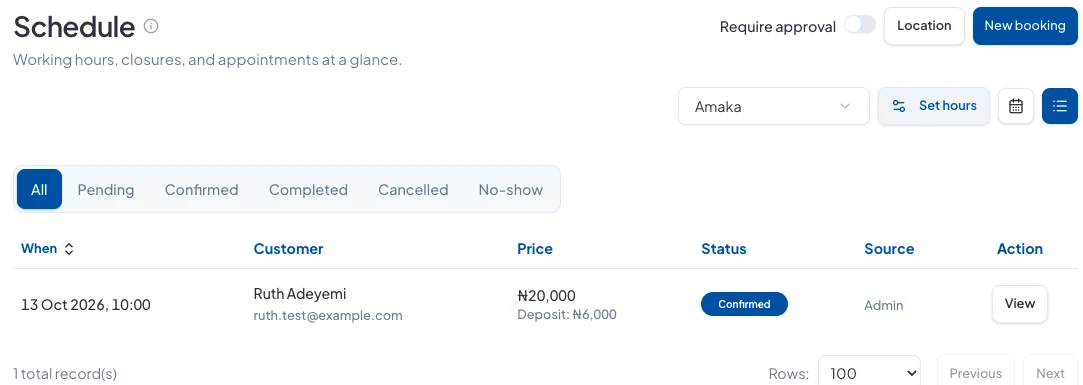
Switch the schedule to the list view to see every appointment with its customer, price, deposit and status. Use the tabs to filter by Pending, Confirmed, Completed, Cancelled or No-show, and click View to open one.
Approve bookings yourself
New bookings confirm automatically once a slot is free. To check each request first, turn on Require approval at the top of the Schedule. You'll then accept or decline every request before the customer is asked to pay.
Good to know
- Bookings made from your store hand the customer to you on WhatsApp to arrange payment.
- When a deposit is paid, record it on the booking so it shows as an order and a payment.
Did this answer your question? Contact support if you need more help.