
Last updated 9 Oct 2026
Many customers prefer to pay by bank transfer. They pay into your account, upload their proof, and you confirm the money has arrived.
1. Turn on bank transfer
Go to Store Setup → Payment Methods. On the Manual tab, switch Bank Transfer on.
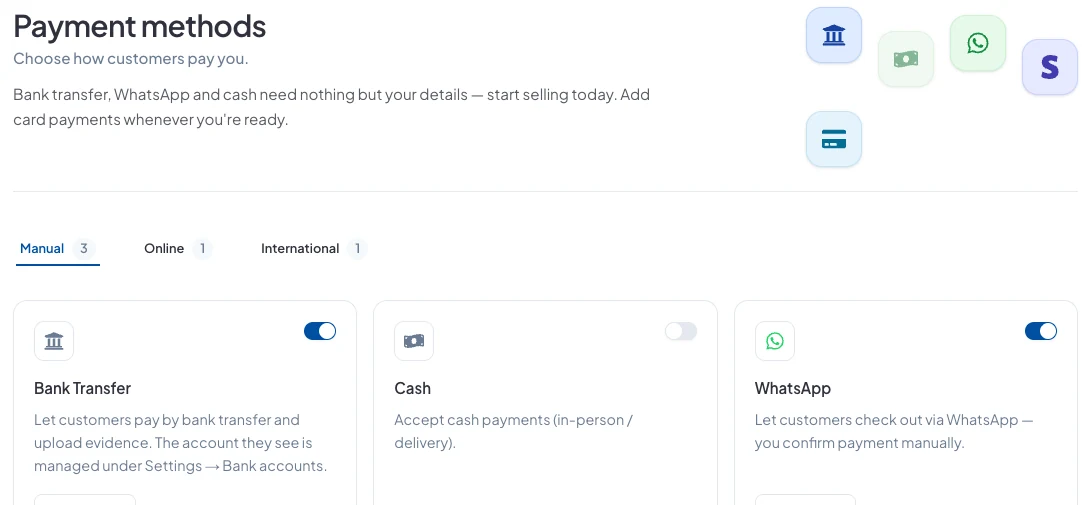
Customers see the account you've set under Store Setup → Bank Accounts, so check it's the right one.
2. Confirm transfers as they arrive
When a customer says they've paid, the payment waits for you under Sales → Payments Received → Pending Bank Transfers. Click Review on order to open it.
The order's payment shows Awaiting review, with any proof the customer uploaded. Check your bank. If the money is there, click Confirm Payment.
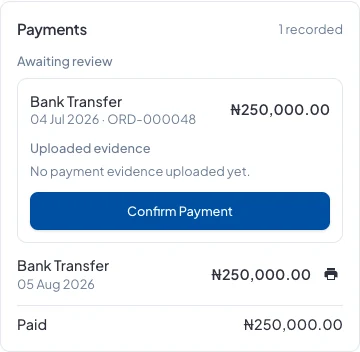
The order is then marked paid, ready for you to fulfil.
Good to know
- Always check your bank before confirming. A screenshot isn't proof the money arrived.
- For an order you created yourself, use Record Payment on the order instead.
- Bank transfers into your own account have no fee from SalesCenta.
Did this answer your question? Contact support if you need more help.