
Last updated 9 Oct 2026
Your logo and brand colour appear across your whole store: the header, the footer, buttons and highlights. You set both in one place.
1. Open Appearance
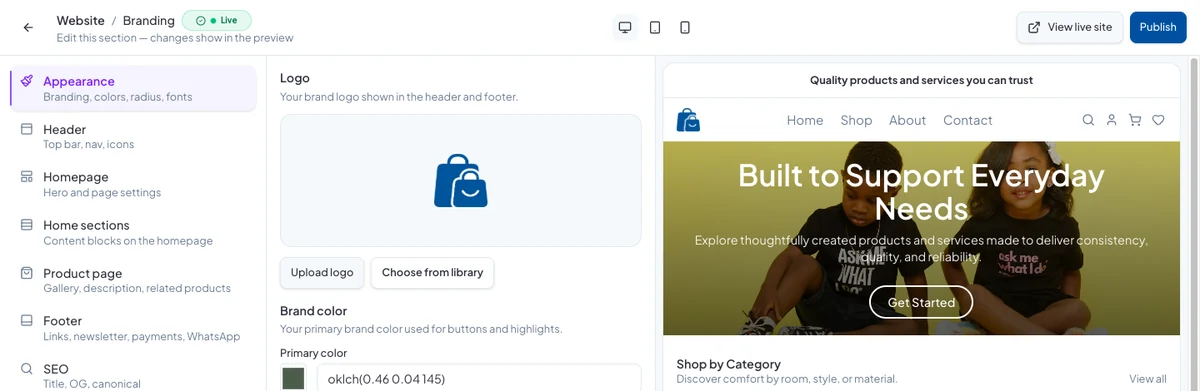
Go to Storefront → Design, hover over your Active theme and click Customize. Appearance is the first section on the left.
2. Add your logo
Under Logo, click Upload logo to add one from your computer, or Choose from library to use one you've uploaded before. It shows in your store's header and footer.
A logo with a transparent background looks best on every page.
3. Set your brand colour
Under Brand color, click the colour square next to Primary color and pick your colour. It's used for buttons and highlights across your store.
Choose a colour dark enough for white text on a button to be easy to read.
4. Publish
Your changes show in the preview on the right as you make them. When you're happy, click Publish at the top right.
Good to know
- Your store name and business details are set separately, in your settings.
- On your phone, More → Edit Website in the SalesCenta app changes your logo and brand colour too.
Did this answer your question? Contact support if you need more help.