
Last updated 9 Oct 2026
Delivery options are what customers choose from at checkout. Each one has a name, the areas it covers and a fee, and you can make delivery free once an order is big enough.
1. Open Shipping
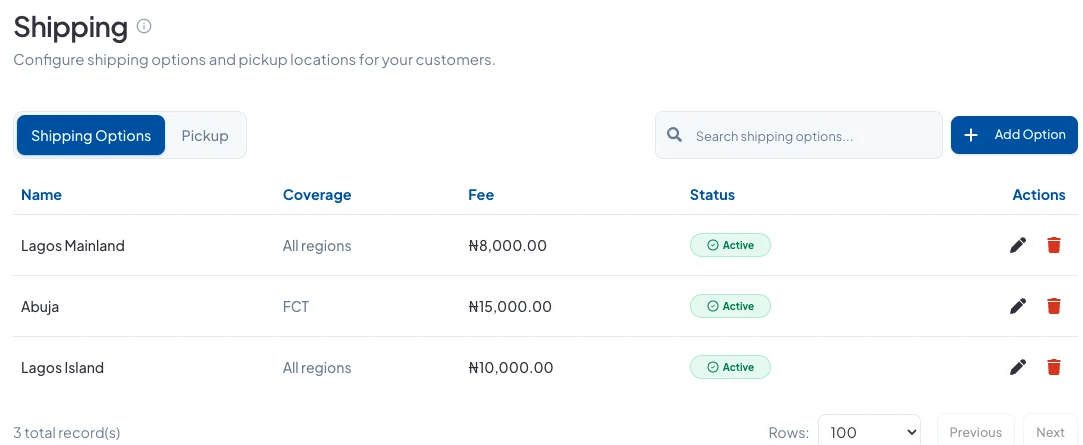
In the sidebar, open More, then go to Store Setup → Shipping. Your delivery options are listed under Shipping Options. Click Add Option to create one.
2. Name it and choose where it delivers
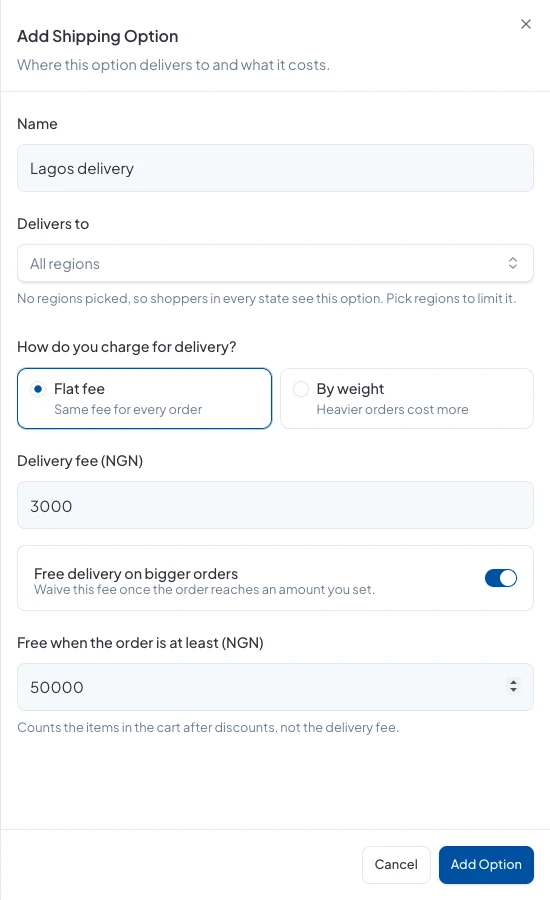
Give the option a Name customers will recognise, like Lagos Island or Nationwide. Under Delivers to, pick the states it covers. If you leave it on All regions, shoppers in every state see it.
3. Set the fee
Under How do you charge for delivery?, choose one:
- Flat fee: the same fee on every order. Enter it in Delivery fee.
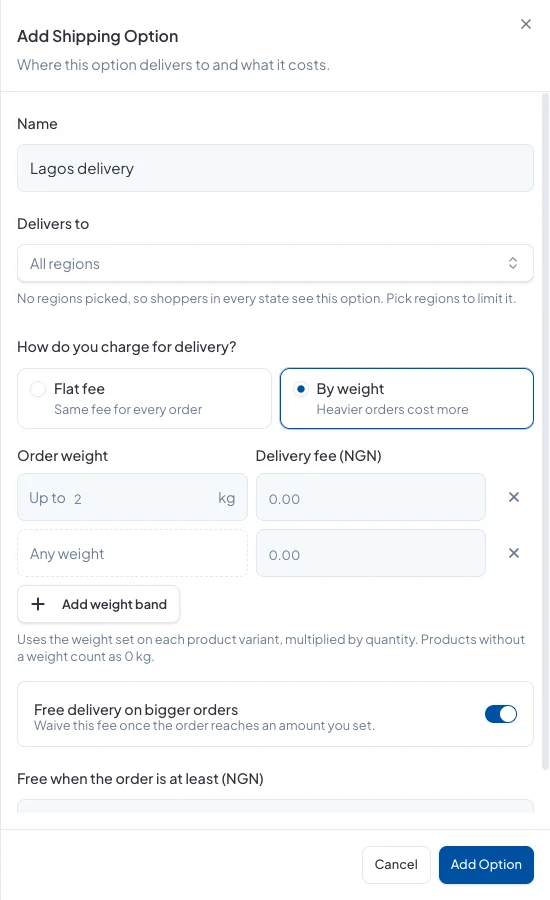
- By weight: heavier orders cost more. Add a band for each weight, for example up to 2 kg, then up to 5 kg, then any weight, each with its own fee.
Weight is worked out from the weight on each product variant, times the quantity. Products without a weight count as 0 kg, so add weights to your products before you charge this way.
4. Offer free delivery on bigger orders
Turn on Free delivery on bigger orders and enter the order total that qualifies. The total is the items in the cart after discounts, not counting delivery.
Click Add Option to save. It shows at checkout straight away.
Let customers collect instead
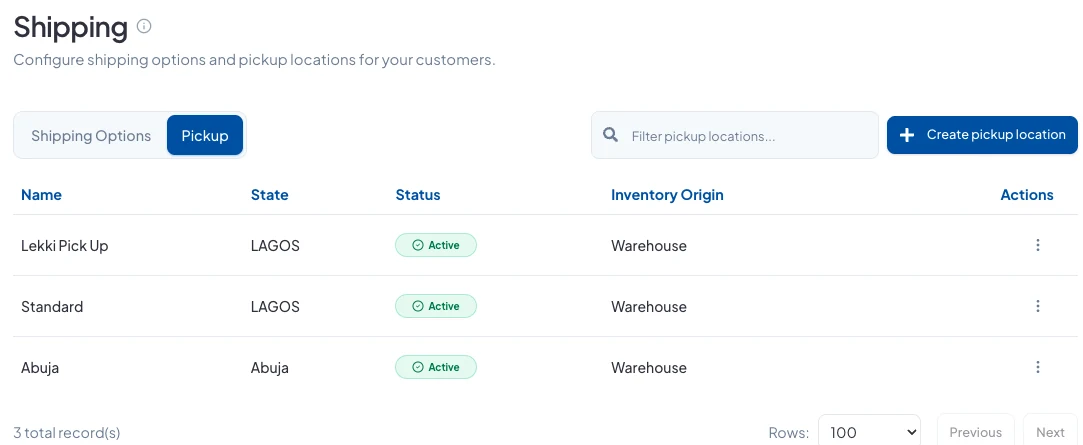
On the Pickup tab, click Create pickup location to add a place customers can collect from. Name it, choose which of your locations its stock comes from, and add its address and state.
Good to know
- To change or remove an option, use the pencil or bin icon on its row.
- A pickup location needs at least one stock location first. Add one under Store Setup → Locations.
Did this answer your question? Contact support if you need more help.