
Last updated 9 Oct 2026
Send an email to your customers and subscribers about new arrivals, a sale or anything else. You build it from images you design, check how it looks, choose who gets it, and send.
Campaigns is a plugin. If you don't see Campaigns under Marketing, go to Plugins and turn on Email & SMS campaigns. Campaigns are sent by email.
1. Start a campaign
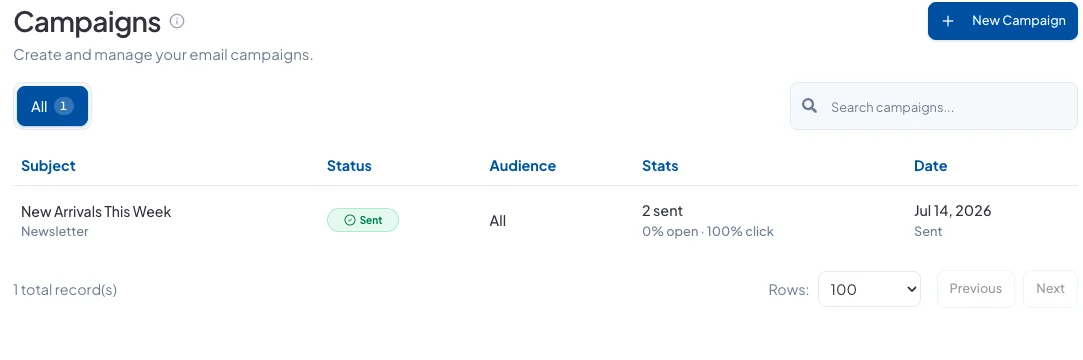
Go to Marketing → Campaigns and click New Campaign. Your past campaigns are listed here with how many were sent and opened.
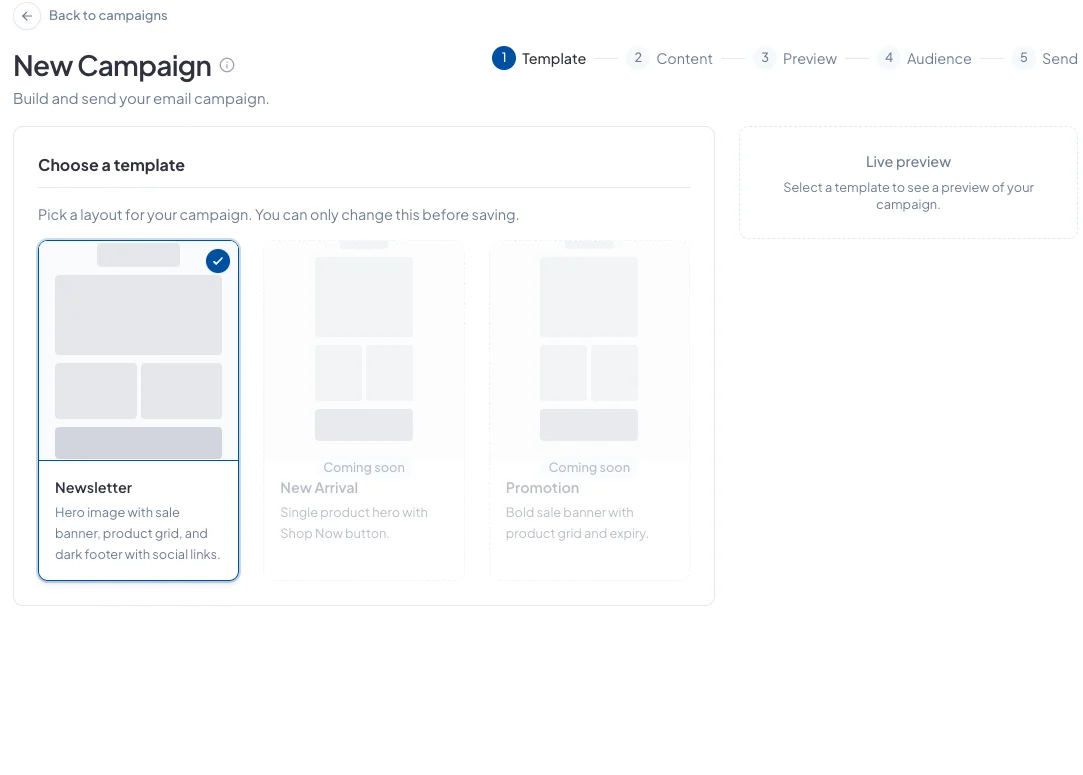
2. Choose a template
Pick Newsletter: a header image, a product grid and a footer with your social links. You can only change the template before you start editing. Click Continue.
3. Add your content
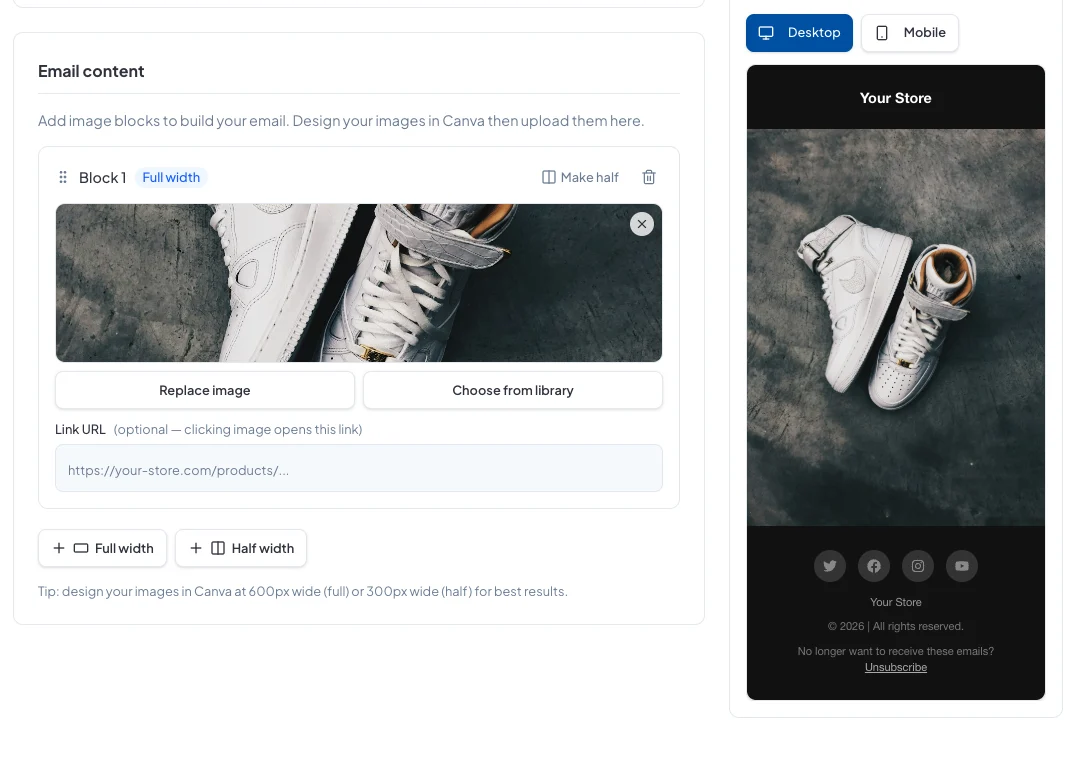
Enter the subject and the short preview text shown in the inbox. Then build the email from image blocks:
- Click Full width or Half width to add a block, then upload an image or choose one from your library.
- Add a Link URL to a block so tapping the image opens a product or page.
- Design your images in a tool like Canva at 600px wide for full width, or 300px for half width.
The live preview on the right updates as you go.
4. Preview it
Check the email on Desktop and Mobile, then click Continue.
5. Choose your audience
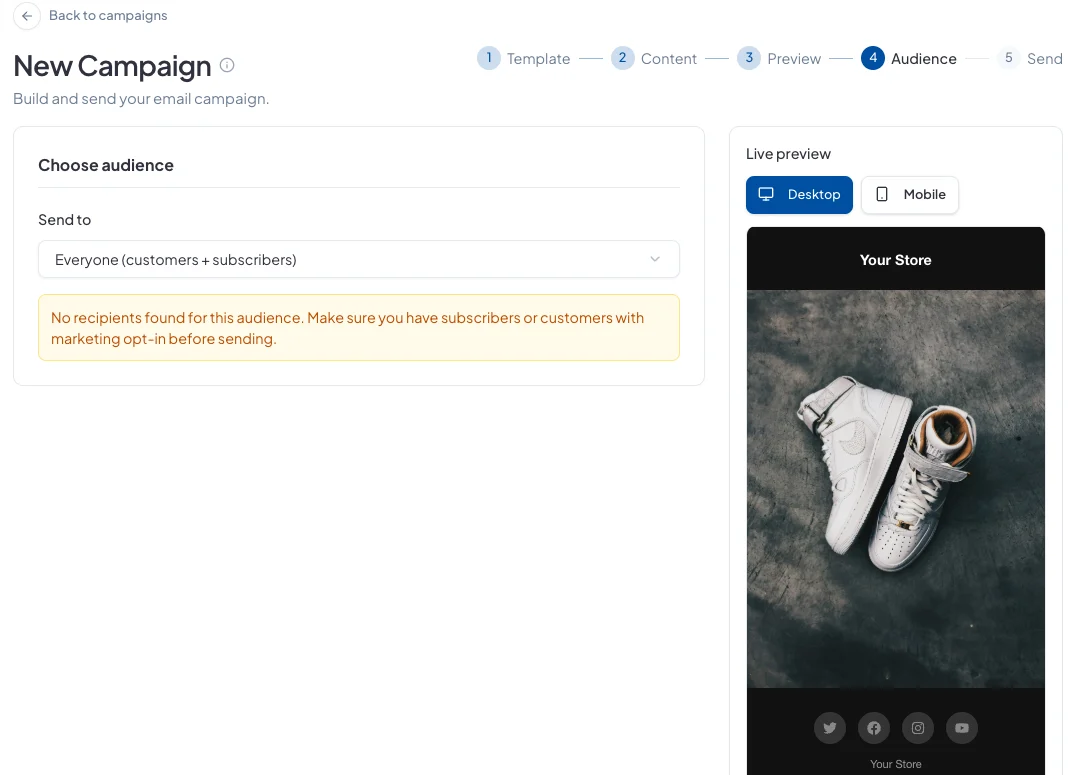
Choose who gets it:
- Everyone: your customers and your subscribers.
- Customers only: customers who agreed to receive marketing.
- Subscribers only: people who signed up for your emails.
Customers who haven't agreed to marketing emails are never included.
6. Test and send
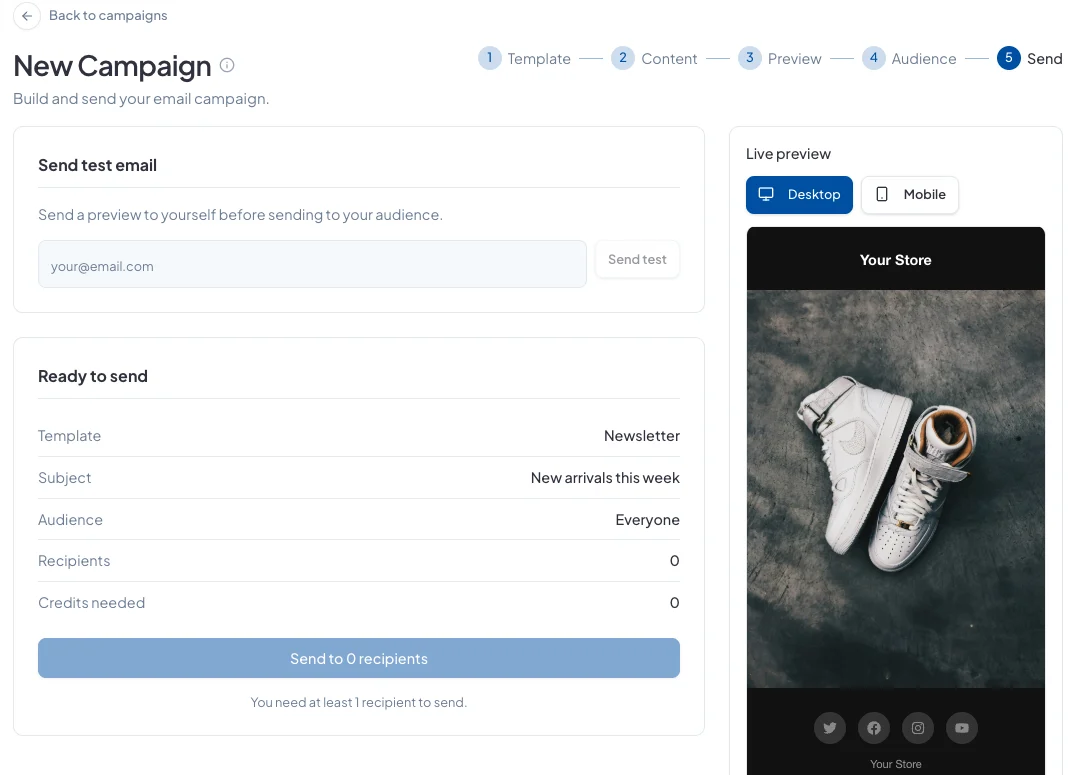
Enter your own email and click Send test to see it in a real inbox first. Check the summary: the template, subject, audience, number of recipients and credits needed. Then click Send.
Credits
Each email sent uses one credit, so 200 recipients need 200 credits. Your plan comes with credits, and you can buy more under Credits. If a send fails, the credits are refunded.
Click Save draft at any step to finish later.
Did this answer your question? Contact support if you need more help.