
Last updated 9 Oct 2026
With Barcodes on, every product variant gets its own barcode, and you can print labels for your shelves and packaging.
Barcodes is a plugin. If you don't see it in your sidebar, go to Plugins and turn on Barcodes. See How do I turn features on and off with Plugins?
Give your products barcodes
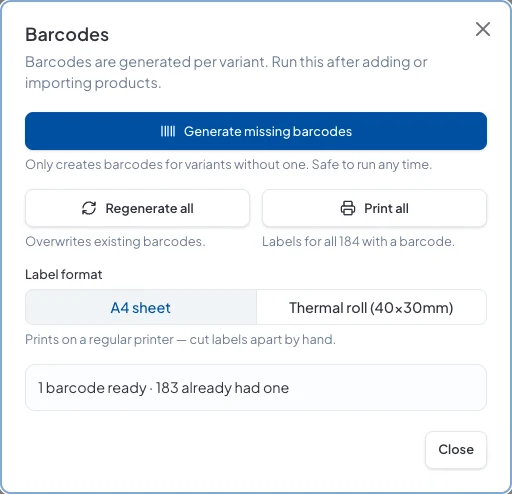
New variants get a barcode automatically. For products you added before turning Barcodes on, go to Products, open the ⋯ menu at the top of the list and choose Barcodes and labels.
- Generate missing barcodes: adds barcodes only to variants that don't have one. It's safe to run any time, for example after importing products.
- Regenerate all: replaces every barcode. Only use this if you haven't printed labels yet, because old labels will stop matching.
Print labels for everything
In the same window, choose a Label format, then click Print all:
- A4 sheet: prints on a regular printer, and you cut the labels apart by hand.
- Thermal roll (40×30mm): for a label printer.
Print labels for one product
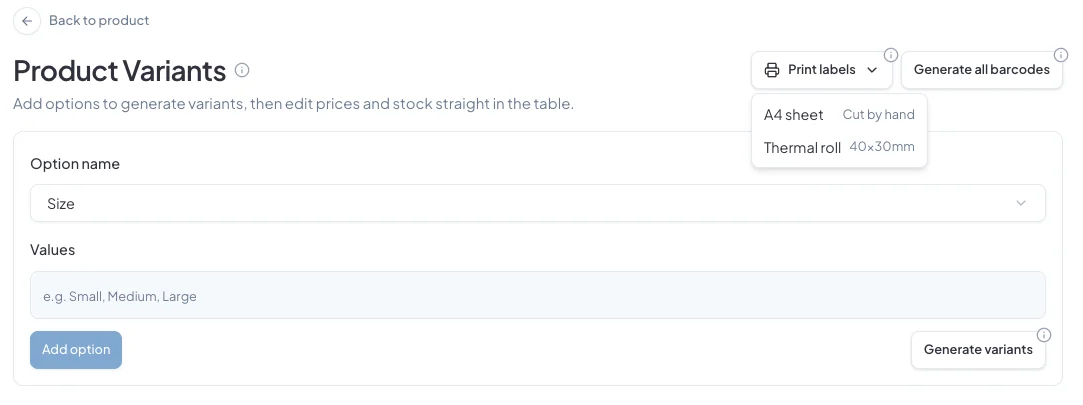
Open the product's variants and click Print labels, then choose A4 sheet or Thermal roll. You can also choose Print labels from a product's ⋯ menu in the products list.
Did this answer your question? Contact support if you need more help.