
Last updated 9 Oct 2026
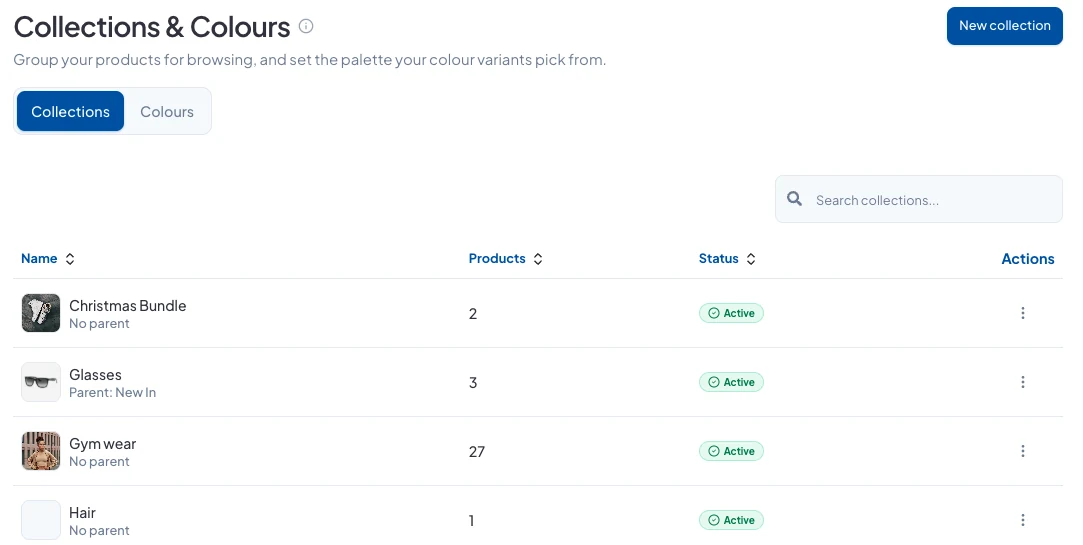
Collections group your products so customers can browse them, such as New In, Sale or Women's shoes. They also appear in your store's menus and on your homepage.
1. Create the collection
Go to Products → Collections & Colours and click New collection.
2. Fill in the details
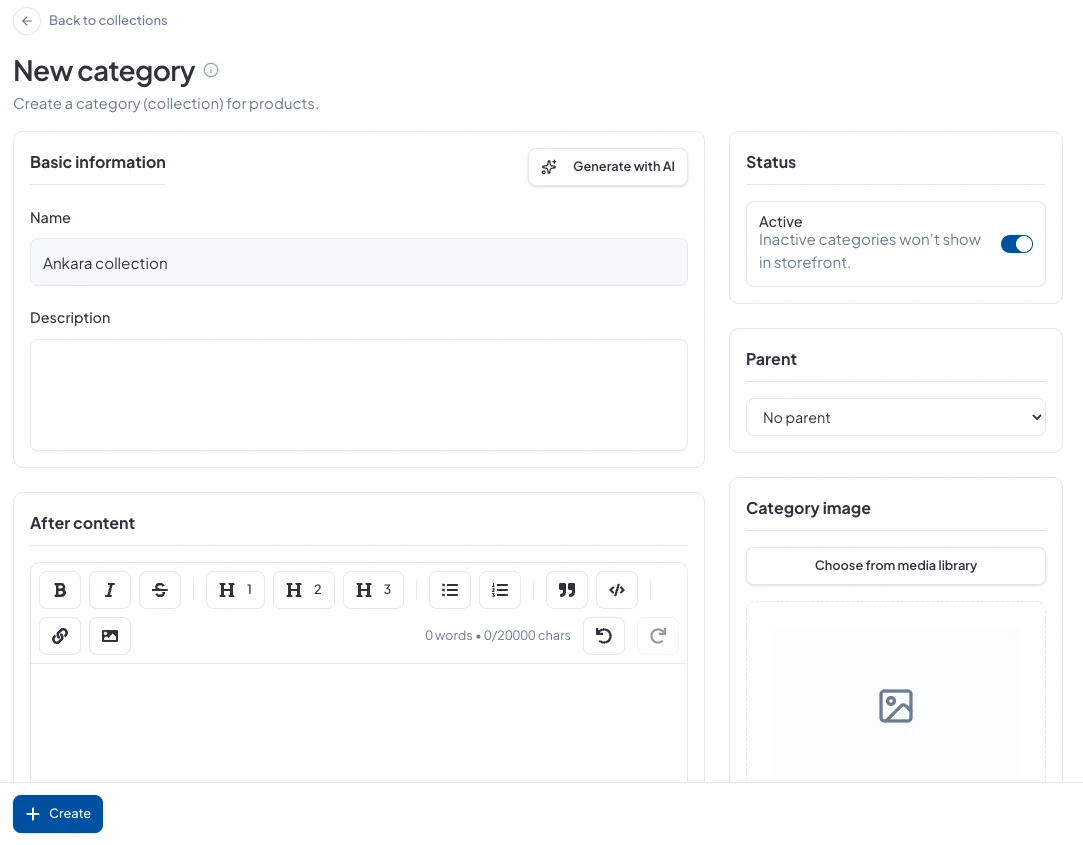
- Name and Description. Click Generate with AI for a first draft of the description.
- After content: longer text that appears further down the collection page. It's good for search.
- SEO: the title and description search engines show.
- Status: leave it Active to show it on your store.
- Parent: nest it inside another collection, for example Sunglasses inside Accessories.
- Category image: the picture shown for the collection.
Click Create.
3. Add products to it
Open a product, tick the collection under Collections, and click Save changes. You can also choose collections when you add a new product.
Good to know
- Turn a collection's status off to hide it without deleting it.
- The Colours tab on the same page holds the colour swatches your products use.
Did this answer your question? Contact support if you need more help.