
Last updated 9 Oct 2026
If your products are already in a spreadsheet, you can bring them all in at once instead of adding them one by one.
1. Open the importer
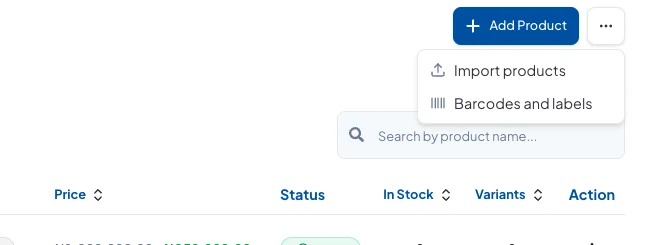
Go to Products → Products, click ⋯ next to Add Product, and choose Import products.
2. Fill in the template
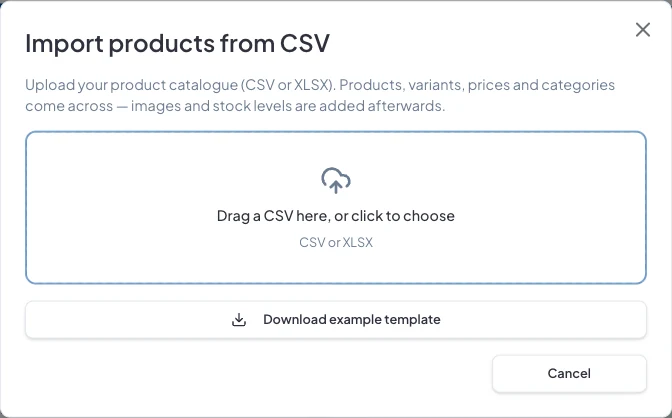
Click Download example template and put your products in it. The columns are PRODUCT NAME, CATEGORY, SUBCATEGORY, SIZE, COLOURS, REGULAR PRICE, SALE PRICE and WEIGHT (KG).
Each product starts on a row with its name. To add more sizes or colours of the same product, add rows underneath with the product name left blank.
3. Upload and check
Drag your file into the box, or click to choose it. CSV and Excel (XLSX) files both work.
SalesCenta shows what Will be imported, and anything Skipped with the reason, such as no category, a repeated product name, or a price of zero. Fix those rows in your file and upload it again, or carry on without them. Click Import when you're happy.
4. Add photos and stock
Products, options, prices and categories come across in the import. Add photos and stock levels afterwards, from each product or from Inventory.
Did this answer your question? Contact support if you need more help.