
Last updated 9 Oct 2026
You can change anything about a product after you've created it, take it off sale without losing it, or remove it for good.
Edit a product
Go to Products → Products and click the product's name. Change what you need, such as the name, description, photos, collections or SEO, then click Save changes at the bottom of the page.
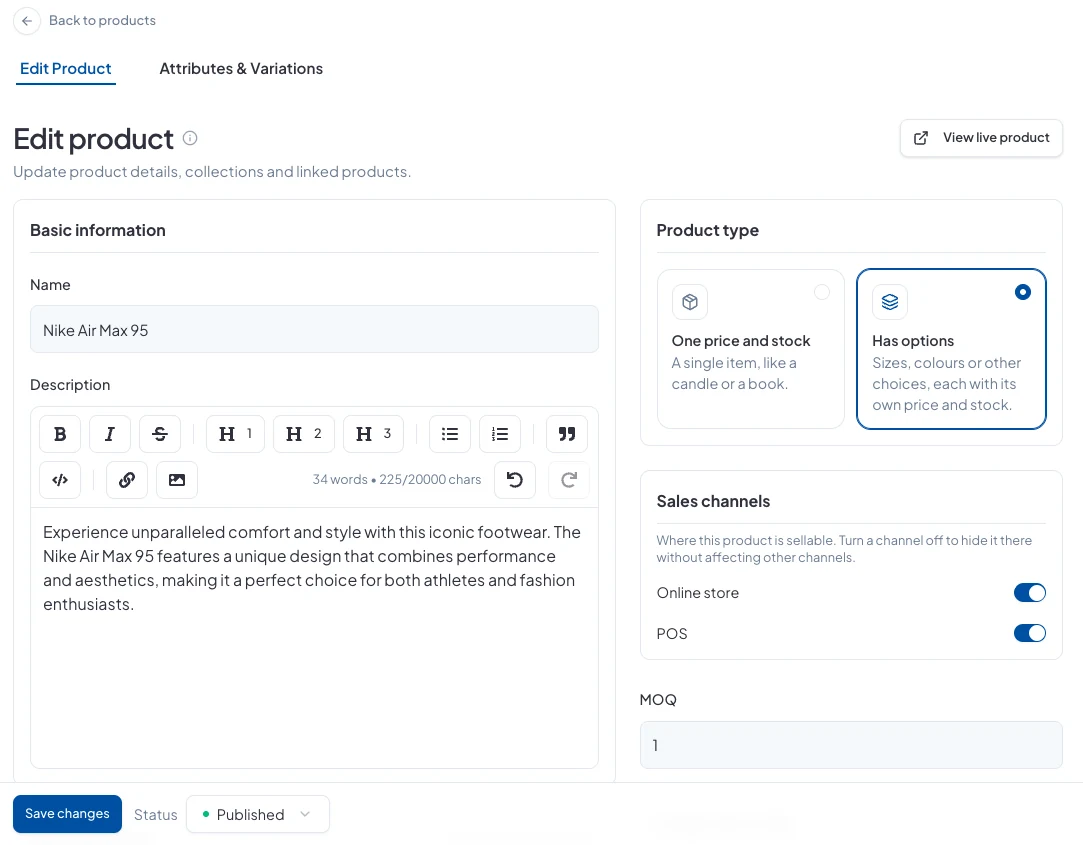
To change sizes, colours, prices or stock for each option, open the Attributes & Variations tab at the top. Click View live product to see it on your store.
Take it off sale: archive
Change the Status at the bottom of the page to Archived and click Save changes. The product disappears from your store, but keeps its details and sales history. You'll find it under the Archived tab on the Products page.
To sell it again, set its status back to Published.
Remove it for good: delete
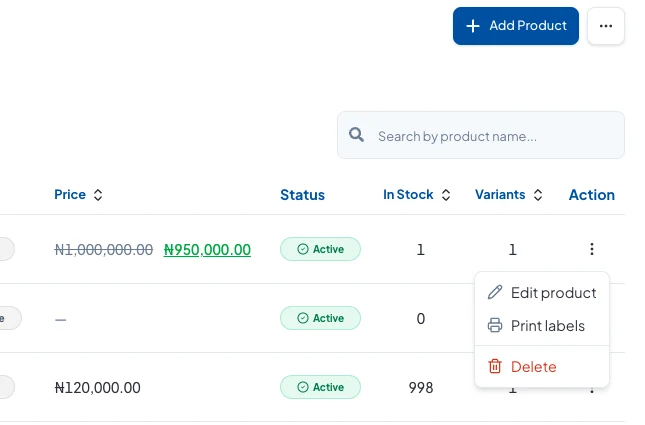
On the Products page, click the ⋯ at the end of the product's row and choose Delete, then confirm.
Good to know
- If there's any chance you'll sell it again, archive it rather than deleting it.
- Draft hides a product while you're still working on it; Archived is for products you've stopped selling.
Did this answer your question? Contact support if you need more help.