
Last updated 26 Oct 2026
On this page
When a customer is at the counter, ring the sale up on the till. The stock comes off straight away, and the sale is recorded as paid and handed over.
Turn on sales view first. See What is sales view, and how do I turn it on?
1. Add what they're buying#
Tap a product to add it to the sale. Tap it again for another one, or use + and − on the sale. To find a product, type its name or SKU in the search box, or pick a category above the products.
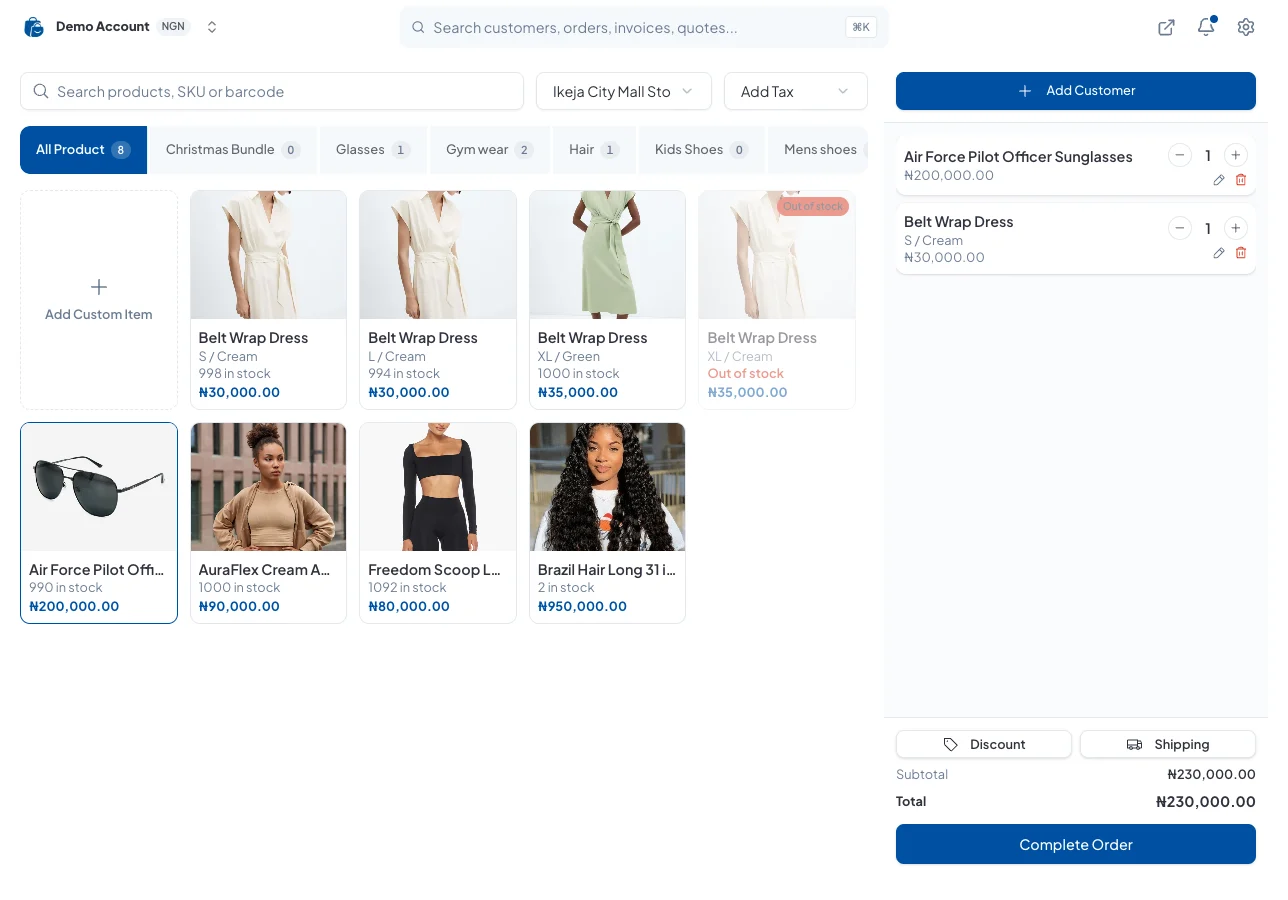
Each product shows how many are in stock at your location. Out-of-stock products are greyed out and can't be added.
2. Add a customer (optional)#
Most walk-in sales don't need one. To put the sale on a customer's record, click Add Customer and search for them, or add someone new.
3. Take payment#
Click Complete Order. Choose how they paid, Cash, Card or Transfer, and click Confirm Payment.
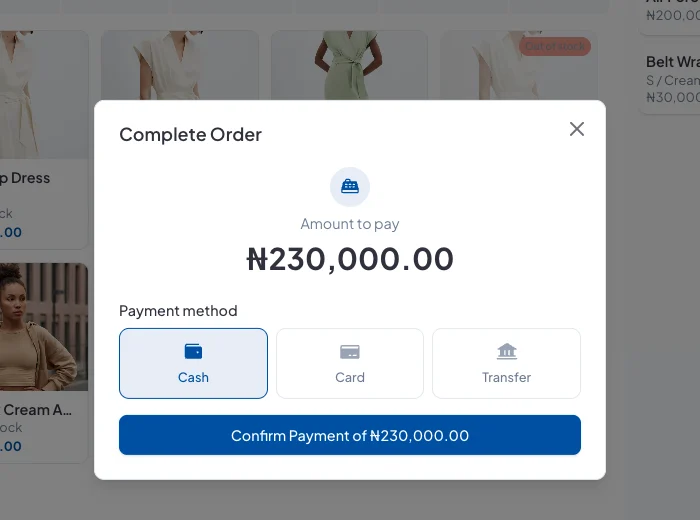
The till doesn't work out change. Count it from the amount shown.
4. Give them a receipt#
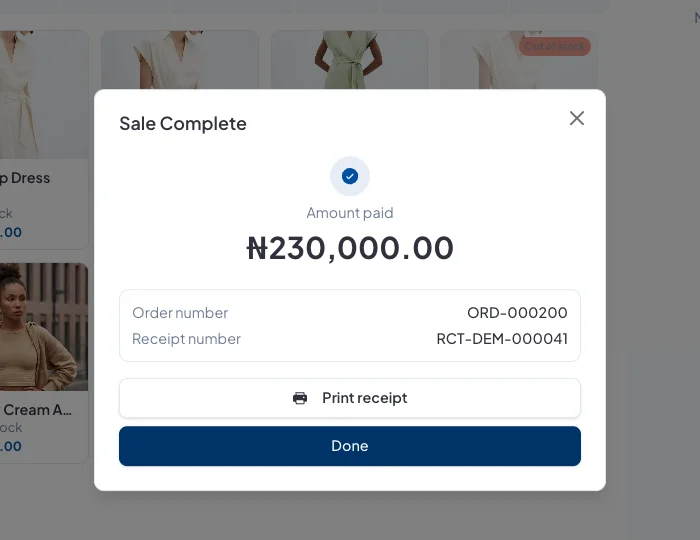
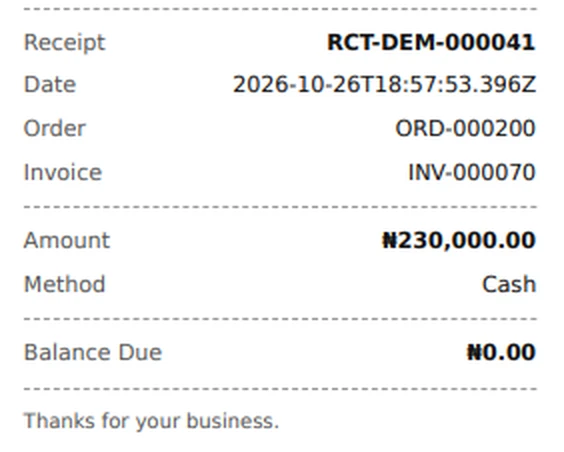
Sale Complete shows the amount paid, the order number and the receipt number. Click Print receipt to open the receipt and print it, then Done to start the next sale.
Good to know#
- With more than five lines on the sale, a Review button appears next to Complete Order, so you can check everything before taking payment.
- To change a price, give a discount, add VAT or sell something that isn't in your catalogue, see the other till guides in this section.
- To charge for delivery, click Shipping under the sale and enter the fee. It's added to the total, but the sale is still marked as handed over at the counter, so arrange the delivery yourself.
- On the Enterprise plan, the till also has an Order Type menu, which starts on Stock First: paid and handed over now, as above. Payment First sends the sale to an invoice to be paid later. See How do I take payment and dispatch an order on Enterprise?
Was this helpful?