
Last updated 26 Oct 2026
Sales view turns SalesCenta into a till for serving customers at the counter. The menu shrinks to the screens you need, and the till opens straight away.
1. Turn it on#
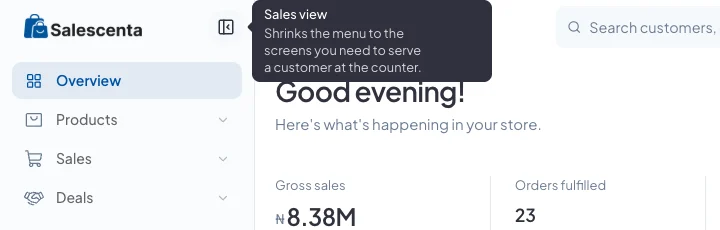
Click the panel icon next to the SalesCenta logo, at the top of the menu. Its label reads Sales view.
2. Use the till#
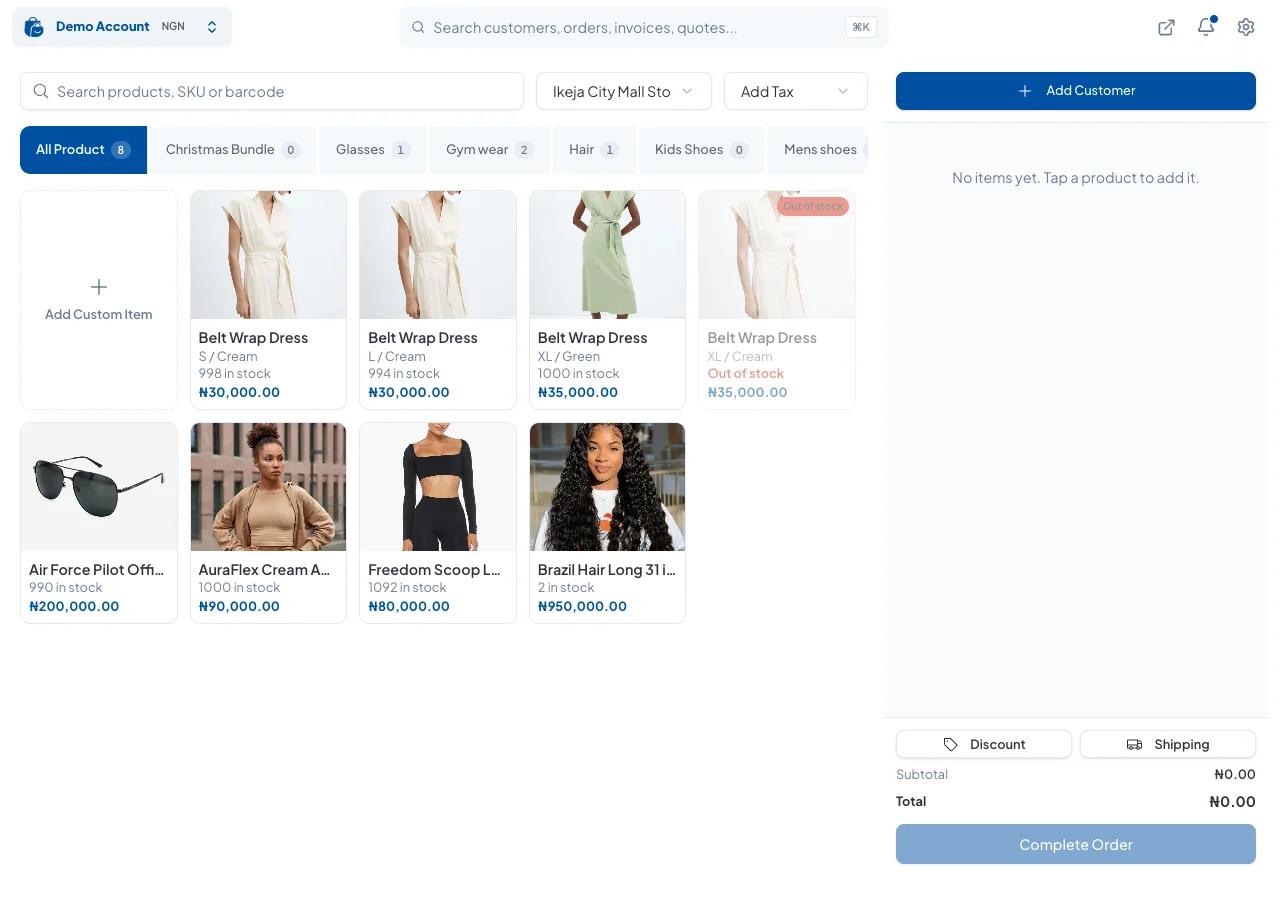
You land on Sales → Transaction: your products on the left and the sale on the right. The menu becomes a narrow strip of icons, so the till has the whole screen.
3. Turn it off#
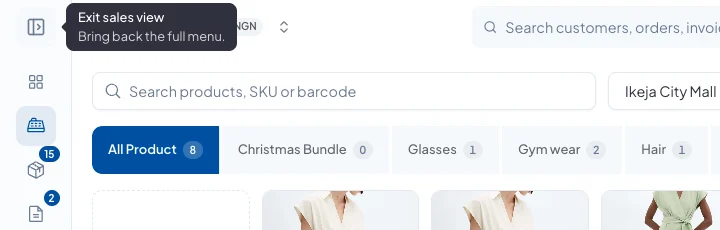
Click the SalesCenta logo at the top of the icon strip. Its label reads Exit sales view, and it brings back the full menu.
Good to know#
- Sales view belongs to the computer, not to you. Turn it on at the counter PC and it stays on there, even after a refresh. Your office laptop keeps the full menu.
- The till is available from the Starter plan up.
- To ring up a sale, see How do I ring up a walk-in sale?
Was this helpful?